To create a transparent material:
- Create or select a material and assign it to a node. See Using materials.
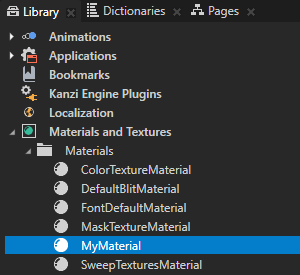
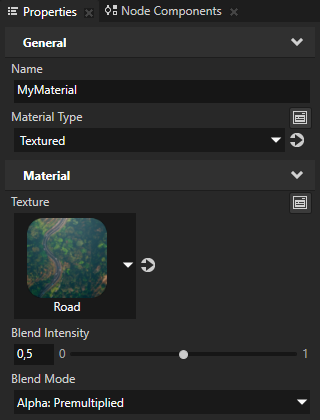
- In the Library > Materials and Textures > Materials select the material and in the Properties set:
- Blend Mode to one of these values:
- Alpha: Automatic
This sets the blend mode to either:- Alpha: Premultiplied when the Premultiply Alpha property for the project or an image is enabled. This is the default value.
- Alpha: Mixed when the Premultiply Alpha property for the project or an image is disabled.
- Alpha: Premultiplied
This is the default and recommended mode for alpha blending.
The Alpha: Premultiplied mode expects premultiplied alpha RGBA in the source fragment, and blends the source fragment with the destination framebuffer. - Alpha: Mixed
This mode expects non-premultiplied alpha RGBA in the source fragment, and blends the source fragment with the destination framebuffer.
For example, use the Alpha: Mixed mode when you dynamically load without preprocessing a texture that uses a fragment shader which does not perform alpha-premultiplication of the RGB color. - Additive
This mode adds the source fragment to the destination framebuffer.
Use the Additive mode for effects where you want a layer to add RGB color, but not reduce the RGB color of the underlying layer.
- Alpha: Automatic
- Blend Intensity to the amount of transparency for your material, where 0 is completely transparent and 1 opaque.
- Blend Mode to one of these values:
